 |
|
|
|
Uninstalling ShowMyPC
Windows
|
Uninstalling ShowMyPC Free and Premium
To completely remove all ShowMyPC files from your PC*, you can use the ShowMyPC uninstaller.
1.
In the Windows search box on the toolbar, type "Add or Remove" and select "Add or remove programs".
2.
Search for ShowMyPC, and click "Uninstall".
*Uninstaller is only available if ShowMyPC was used in admin mode.
No user can access your PC using ShowMyPC after the program has been closed, unless it was installed as a Windows service.
No connection is kept active after you have uninstalled or terminated ShowMyPC.
Uninstalling ShowMyPC Access Home or Office Service
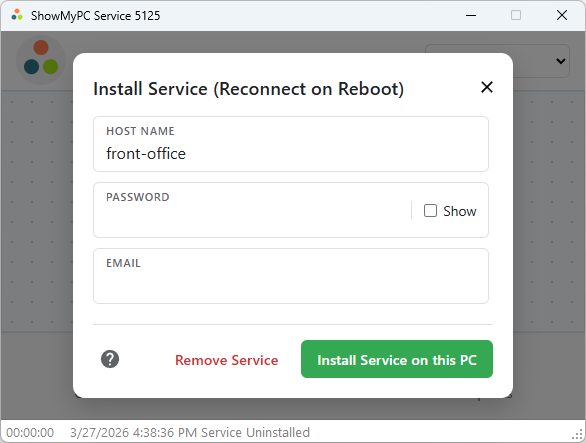
To remove ShowMyPC Access Home or Office Service from your system, launch your software from your account page.
Select "Install Service", then click on "Remove Service". This will uninstall the ShowMyPC service from your computer.
Remotely Uninstalling ShowMyPC Access Home or Office Service
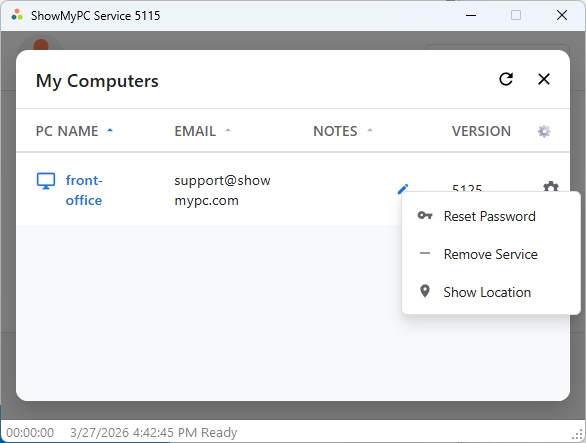
You can remotely remove service from PC service management link.
Launch your PC viewer, or HTML Viewer, and select the Settings icon on the PC you want to remove.
Requested link will be sent to the email used for that PC.
When removing service remotely, it may take up to 10 mins for PC to go off your list.



Contact