 |
|
|
|
Switch Presenter or Switch Screen
Windows
|
Switch Presenter while using ShowMyPC
A common scenario, where the presenter and the viewer want to switch screens.ShowMyPC premium version has a simple way to switch the presenter during a meeting.
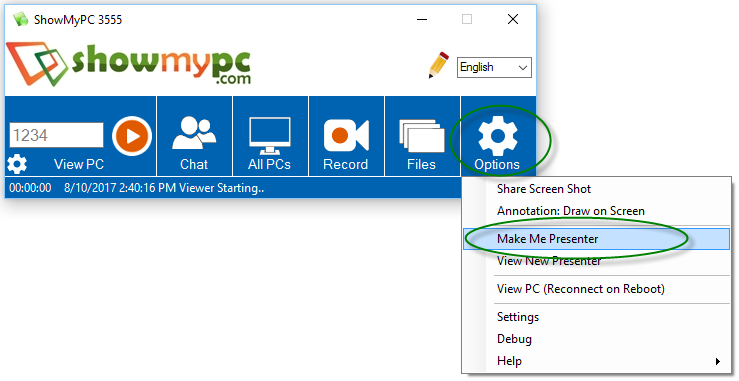
1) While a session is in progress, any user can become a presenter. "Options" > "Make Me Presenter"
2) Viewers can click "Options" > "View New Presenter"
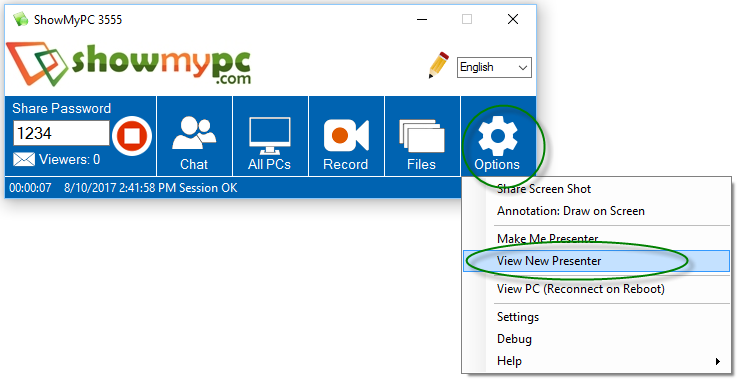
During a meeting, follow the same process to keep switching the screen between users.
Currently available in Windows version only.
How to do mutual screen sharing?
In a case where both users want to share screen with each other, please follow these steps.1. Both users will start sharing by clicking ShowMyPC on their own PCs.
2. Both users will share the password with each other.
3. At any point, if you want to view other user's PC, click on View Remote PC and enter that user's password.
Important: Make sure you minimize the viewer of the other user's PC, otherwise you will see your own screen, resulting in mirror effect (multiple screens).



Contact